
MetaTrader 5 Expert Advisor for FX Analytics
A walkthrough of the Global Investing FX Terminal MT5 Expert Advisor — what it is, how to install it, what each panel shows, and how it relates to the companion web terminal. If you trade inside MetaTrader 5 and want institutional-style FX analytics without leaving the chart window, this guide covers the setup end to end.
What the MT5 EA Is
The Global Investing FX Terminal is a MetaTrader 5 Expert Advisor that renders as a native dashboard overlay directly inside your chart window. It is not an automated trading robot — it does not place trades or manage positions. It is a multi-panel forex dashboard: a single overlay that surfaces CFTC COT positioning, central bank rate bias, a carry trade ranking, an economic calendar, retail sentiment, currency strength, correlation, volatility, and an AI-generated market narrative, all updating on their own schedules without requiring a browser tab.
Installing the EA
The EA is distributed through MQL5 Market (product #180326), MetaTrader's built-in marketplace, rather than as a standalone download. Installation follows the standard MQL5 Market flow:
- Open MetaTrader 5 and go to the Market tab in the Toolbox panel, or visit the product page directly on the MQL5 website.
- Rent or purchase the Global Investing FX Terminal license.
- From the Market tab inside MT5, click Download — the EA installs into your terminal's
Expertsfolder automatically. - Drag the EA from the Navigator panel onto any chart. The default panel layout renders immediately; no input parameters are required to get started.
- If prompted, enable Allow WebRequest in the EA's Common tab and add
raw.githubusercontent.comto the URL list — this is required for the EA to fetch the licensing check and periodic data refreshes.
Panel-by-Panel Overview
All panels render simultaneously as a single fixed dashboard grid rather than switchable tabs — every panel below is visible at once, laid out around the chart. The data sources and calculation methodology behind each panel are documented in full in the terminal's published methodology — see Global Investing FX Terminal — Methodology for the complete technical reference. The sections below summarize what each panel shows inside MT5.
CFTC COT Positioning
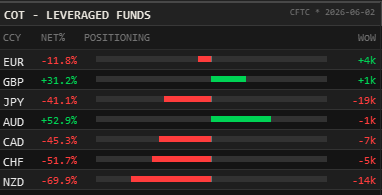
Weekly net positioning from the CFTC's Traders in Financial Futures report, for the Leveraged Funds category — the institutional speculative accounts most often used as a directional proxy in FX. Net positioning is normalized to a 52-week rolling z-score so readings are comparable across currencies despite differing futures contract sizes, alongside the week-over-week change in net positioning to distinguish a currency at an extreme that is still building from one that is already unwinding.
CB Bias & Rate Expectations
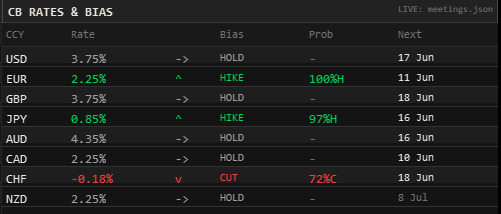
Two distinct signals per central bank: a retrospective trend (the direction of the most recent policy decision) and a prospective bias (what OIS-equivalent market pricing currently expects at the next meeting). These two signals are deliberately allowed to diverge — a rate held flat for months with a market-implied cut priced for the next meeting is a normal, intentional reading, not a contradiction the panel tries to resolve.
Carry Monitor
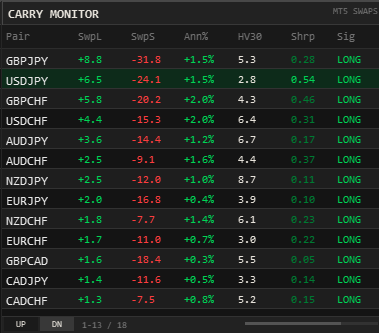
Because the EA runs inside your own MT5 terminal, the Carry Monitor reads your broker's actual live swap rates rather than a generic estimate — annualized and then adjusted for each pair's trailing 30-day realized volatility, following the same Sharpe-adjusted carry convention used by institutional carry trade monitors. A high nominal swap in a high-volatility regime is flagged differently from the same swap in a calm one, which is the same distinction that separates an intact carry trade from one at risk of unwinding.
This matters most on JPY funding pairs, where periods of low realized volatility can mask a large duration of accumulated carry positioning. When volatility rises against a shrinking Sharpe-adjusted score, that shift shows up on the panel as a ranking change rather than a silent swap figure — a live view of the same setup that has historically preceded past yen carry trade unwind episodes, without the panel making any predictive claim about timing.
Economic Calendar
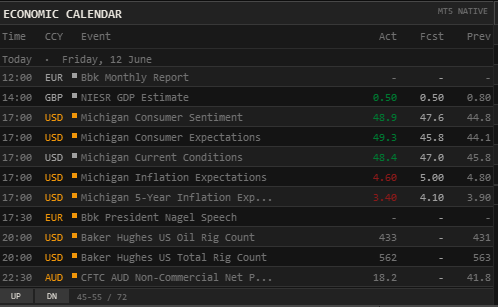
A native MT5 economic calendar panel built from MetaTrader's own calendar feed, showing upcoming high- and medium-impact releases for the major economies without needing a separate calendar app or browser tab open alongside the chart.
Composite Score
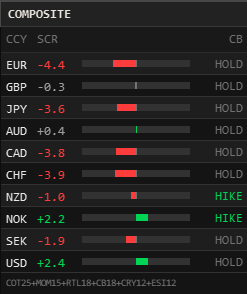
A single blended score per currency that combines six of the panels above into one number on a ±10 scale: COT positioning (25%), momentum (15%), retail sentiment (18%), CB bias (18%), carry (12%), and the Economic Surprise Index (12%). It follows the standard four-factor skeleton (value/carry/momentum/positioning) used by institutional composite proxies, rather than a bespoke weighting scheme. For NOK and SEK, which have no liquid CFTC futures, the COT weight is redistributed proportionally across the remaining five components instead of injecting a misleading neutral zero.
Economic Surprise Index
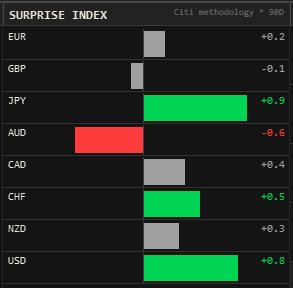
A per-currency read on whether recent economic releases have beaten or missed consensus, following the same construction convention as Citigroup's Economic Surprise Index. Each of the ten currencies is scored over a rolling 90-day window of importance-eligible releases, extending automatically to 180 days for currencies whose calendar has too few releases in the shorter window to produce a stable reading. A currency with no eligible releases in either window shows N/A rather than a misleading zero.
Market Sessions
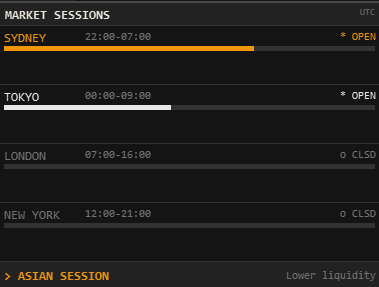
Open/closed status and a progress bar for the four major trading sessions — Sydney, Tokyo, London, and New York — converted to your broker's server time, with each zone's daylight-saving boundary calculated independently so the displayed open and close hours stay accurate as regions shift on and off DST at different points in the year. A footer summarizes the current overlap condition (e.g. the London/New York overlap, the highest-liquidity window of the trading day) and flags the weekend when all four sessions are closed.
Sentiment, Currency Strength, Correlation & Volatility
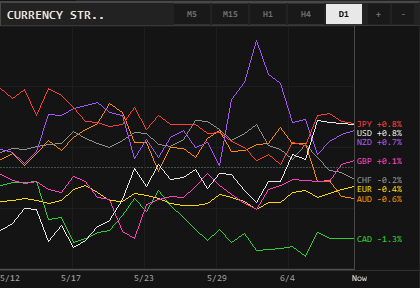
Rounding out the 13-panel set: retail positioning (used as a contrarian read against the institutional COT signal), a currency strength index ranking the majors against each other across selectable timeframes, a cross-pair correlation matrix, and a volatility & options panel covering realized volatility and risk reversal skew.
AI Market Narrative
Alongside the quantitative panels, the EA displays a qualitative market signal per currency pair, refreshed on a periodic cycle and presented with a priority indicator and supporting narrative text. This is a qualitative complement to the quantitative panels — it does not feed into any composite score and is descriptive of current conditions, not a recommendation to take a position.
MT5 Alerts & Push Notifications
Because the EA runs natively inside MetaTrader 5, it can use MT5's own alert infrastructure directly — in-terminal popup alerts and, where the terminal is linked to the MetaQuotes ID for mobile push notifications, alerts on your phone. This is one of the two capabilities the MT5 layer has that a browser-based dashboard cannot replicate (the other being live broker-specific swap and account data) — alerts arrive through the same channel traders already use for price and order alerts, with no separate app or webhook to configure.
EA vs. Web Terminal
The MT5 EA and the companion web terminal at globalinvesting.github.io share the same underlying data for CB bias, COT, carry, sentiment, and news — so the core read on positioning and policy expectations is consistent whichever you have open. The Economic Surprise Index is the one exception: the EA scores it from MT5's own native calendar feed, while the web terminal scores it from its own independent calendar feed — two providers with different event coverage, so ESI readings for the same currency (particularly NOK and SEK, where either feed's coverage is thin) can genuinely diverge between the two platforms rather than reflect a discrepancy to reconcile. Each layer then adds capabilities the other cannot:
- MT5 EA only: live broker swap rates, an open positions panel reading your actual account, MT5 native economic calendar, and MT5 popup / mobile push alerts.
- Web terminal only: full OHLC price chart history, the US Treasury yield curve, the derivatives suite (25-delta risk reversals, CIP-implied forwards, ECB fixings, DTCC OTC volume), and the Cross-Asset Risk Monitor.
A single subscription unlocks both, so the two are best used together rather than as alternatives to each other — see the Access page for the full feature breakdown table.
Further Reading
For the full calculation methodology behind every panel referenced above — z-score normalization, OIS-implied probability mechanics, the Composite Score weighting, and documented limitations — see the published methodology document:
13 data panels rendered natively inside MetaTrader 5 — COT, CB bias, carry, calendar, sentiment, and AI narrative — plus the full web terminal under the same subscription, with no installation required.
Frequently Asked Questions
What does the Global Investing MT5 Expert Advisor do?
It is a MetaTrader 5 Expert Advisor that renders a multi-panel FX analytics dashboard as a native canvas overlay inside your MT5 chart window — covering CB rate bias, CFTC COT positioning, carry trade ranking, currency strength, an economic calendar, retail sentiment, correlation, volatility, and an AI-generated market narrative, without requiring a browser.
Is this MT5 EA an automated trading robot?
No. It does not place trades or manage positions. It is an analytical overlay — a forex dashboard that displays institutional-style market data panels inside MetaTrader 5 so the trader can make their own discretionary decisions.
How do I install the MT5 EA on my chart?
Rent or purchase the EA from MQL5 Market, download it from the MQL5 Market tab inside MetaTrader 5, then drag it onto any chart. The EA renders its panels as a dashboard overlay; no further configuration is required for the default layout.
Does the MT5 EA work with any broker?
Yes. The EA runs inside MetaTrader 5 regardless of broker, since it does not place trades. Panels that reference swap rates or open positions (such as the Carry Monitor) read live values directly from your broker's own MT5 feed.
How does the Carry Monitor flag yen carry trade unwind risk?
The Carry Monitor does not read nominal swap points on their own, since a wide swap can look identical whether the underlying pair is calm or already unwinding. It annualizes each pair's live broker swap and divides by its trailing 30-day realized volatility, producing a Sharpe-adjusted carry score. When a funding-currency pair such as a JPY cross shows elevated volatility against a shrinking or negative Sharpe-adjusted carry, that combination is the same pattern institutional desks associate with a carry trade unwind, and the panel ranks it accordingly rather than showing a flat swap figure.
What is a carry trade unwind, and can the MT5 EA warn me about one?
A carry trade unwind is a rapid reversal of positions built to collect interest-rate differential (commonly funded in yen), typically triggered by a spike in volatility or a shift in central bank policy expectations that erases the trade's risk-adjusted return. The EA does not predict the trigger event itself, but its Carry Monitor, CB Rates & Bias, and Volatility panels update from the same live data on the same chart, so a volatility spike alongside a deteriorating carry ranking and a shift in policy bias is visible together rather than requiring three separate tools.
What is the difference between the MT5 EA and the web terminal?
Both share the same underlying data pipelines for CB bias, COT, carry, sentiment, and news. The Economic Surprise Index is the exception — the EA scores it from MT5's own native calendar, the web terminal from its own calendar feed, so readings for the same currency can diverge between the two. The MT5 EA adds account-specific panels not possible in a browser — live broker swap rates, an open positions panel, and native MT5 popup and mobile push alerts. The web terminal adds panels not present in the EA, such as the Cross-Asset Risk Monitor, the yield curve, and the derivatives suite. A single subscription unlocks both.